
Google review link and QR code: get more reviews
Find your Google review link, turn it into a QR code and ask every customer at the right moment, without breaking Google's rules or UK law on fake reviews.
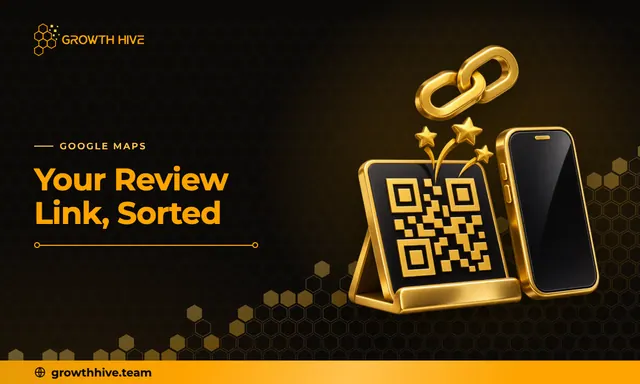
Your Google review link is in your Business Profile: open Read reviews, choose Get more reviews, and copy the link or download the QR code. Put it where customers finish dealing with you, and ask every customer the same way, with nothing offered in return. That is the whole method; the rest of this guide is the detail that makes it work week after week.
Where to find your Google review link in your Business Profile
Google’s help page on creating a review link or QR code gives these steps. Use a computer, signed in to the Google account that owns or manages the profile:
- Go to your Business Profile at business.google.com.
- Select Read reviews.
- From the share option, choose Get more reviews.
- Select Copy to copy the review link, or right-click the QR code and choose Save image as.
Google says review QR codes can only be generated in a computer browser, not on a mobile device, so do this step at a desk. The same panel also offers sharing by email, WhatsApp or a Facebook post.
If you cannot see Read reviews, you are probably signed in to the wrong Google account, or your account is not an owner or manager of the profile. Sort that out before anything else, because every link you print will depend on it.
A steady flow of honest reviews is part of what we look after in our Google Business Profile management service, but the set-up below is something any business can do in one sitting.
Shorten it, test it and save it where your team can find it
Test it first. Open the link on a phone that is not signed in as the business, ideally one iPhone and one Android. It should open the review box for your business. Customers need to be signed in to a Google account to leave a review, and Google notes they can create one with a non-Gmail email address, so expect a sign-in screen for some people.
Decide whether to shorten it. The link Google gives you is usable as it is. If you want something people can type from a van door or a printed card, set up a redirect on your own website, such as yourbusiness.co.uk/review, that points to Google’s link. If the link ever needs to change, you update one redirect instead of reprinting everything. Be wary of free shortening services you do not control: if that account lapses, every printed code that uses it can stop working.
Save it in one place. Put the link in a shared document with a note of the date you tested it, and add it to the places your team already uses: email templates, your booking or invoicing system’s follow-up message, and the team’s phone notes. If you have more than one location, each Business Profile has its own link, so label them clearly.
Turn the link into a QR code for counters, receipts, vans and invoices
The QR code Google gives you is ready to print. If you set up your own redirect, you can generate a code from that address instead. Choose a static QR code that holds the address itself; some “dynamic” QR services send scans through their own servers, so the code depends on that service staying active.
Google suggests placing the link or code on receipts, in thank-you emails, at the end of a chat conversation, and as a printed QR code in store. Here is how that translates to common UK businesses:
| Placement | Suits | Practical tip |
|---|---|---|
| Card by the till or card machine | Cafés, salons, shops, clinics | Eye level, with one line such as “Tell us how we did” |
| Bottom of receipts and invoices | Trades, professional services | Print the QR code and your short web address together |
| Van rear door or side panel | Plumbers, electricians, cleaners | Large enough to scan from a pavement; add the short address too |
| Card in the bag or parcel | Retail and online orders | Pairs well with a follow-up email a few days later |
| Email signature and job sign-off message | Any business | The link works better than a QR code on a screen |
Print one test copy and scan it from where a customer would actually stand. Check it again whenever you change printers, card stock or signage.
When and how to ask: timing, wording and short templates
Timing. Ask soon after the experience, while it is fresh: when a job is signed off, after an appointment, or a day or two after a delivery arrives. Ask every customer, not only the ones who seemed pleased.
Wording. Keep it neutral and short. Ask for an honest review, never for five stars. Use one link and no attachments. Do not ask people to mention a particular team member: Google’s policy says businesses must not ask staff to collect reviews that name a member of staff.
Keep offers out of the message. The ICO’s guidance on electronic marketing says routine customer service messages are not direct marketing, but a message that includes significant promotional material is, and then the PECR consent rules apply. A plain review request with no promotion keeps things simple.
Short templates you can adapt:
SMS, after a job
Hi [first name], thanks for choosing [business name] today. If you have a minute, we would value an honest review on Google: [link]. [Your name]
Email, after an appointment or delivery
Subject: How did we do?
Hi [first name], thank you for visiting [business name] on [day]. We read every review, and an honest one helps other people in [town] decide. You can leave yours here: [link]. If anything was not right, just reply to this email and we will look into it. Kind regards, [your name]
WhatsApp, for customers who already message you
Thanks again, [first name]. If you are happy to, you can leave an honest Google review here: [link]
In person
If you have a moment later, we would be grateful for an honest Google review. The link is on your receipt.
Send one reminder at most. A second or third chaser starts to feel like pressure.
What Google and UK law do not allow: incentives, review gating, staff reviews
Google’s Maps content policy and UK consumer law both apply to review requests. The main lines:
- No incentives. Google does not allow businesses to offer payment, discounts, or free goods or services in exchange for posting a review, or for changing or removing a negative one. Keep prize draws and loyalty points out of it too, whatever else you run.
- No review gating. Google does not allow businesses to discourage negative reviews or to selectively ask happy customers for positive ones. Sending a “were you happy?” survey first and passing only the high scorers to Google is exactly that. If you collect private feedback, send the Google link to everyone.
- No staff, family or friends. Google treats reviews from current or former employees, family members and others with a close tie as a conflict of interest. The CMA’s fake reviews guidance also says commissioning a review can include a business asking a member of staff to write one.
- No staff targets or scripted content. Google’s policy says businesses must not ask staff to collect a set number of reviews, or reviews with specific content.
- No pressure on the premises. Google says businesses should not require or pressure customers to leave reviews while they are on site. A QR code on the counter is fine; handing someone a tablet and waiting is not.
Since 6 April 2025, the Digital Markets, Competition and Consumers Act 2024 has banned fake reviews and reviews that hide an incentive. The details and penalties are in our guide to fake Google reviews and the law in the UK.
Is it working? Track review count, rating and reply time each month
Google’s help on improving local ranking says that more reviews and positive ratings can help a business’s local ranking, and that there is no way to pay for a better local ranking. So it is worth checking, once a month, whether your requests are turning into reviews.
A simple monthly log is enough:
| Measure | Where to find it | What to look for |
|---|---|---|
| New reviews this month | Read reviews in your Business Profile | A steady number, not a spike then nothing |
| Average rating | Your profile on Google Search or Maps | Direction over three to six months |
| Reviews replied to | Read reviews | Every negative or mixed review answered |
| Days to reply | Your own log | Faster replies on negative reviews |
| Requests sent | Your booking system or SMS tool | Roughly how many requests lead to one review |
| Themes | The review text | The same complaint twice in a month needs a fix |
Replies are part of the loop. A short, specific answer under each review shows the next customer someone is listening; our guide on how to respond to Google reviews has examples for positive, negative and unfair reviews.
If new reviews stop appearing altogether, or a warning appears on your profile, look at the profile itself rather than your requests. Google can limit reviews on a profile after a policy problem, and that needs its own fix.
Next step
If you cannot reach Read reviews, someone else controls the profile, or the profile is suspended or unverified, run our free listing check. It ends on the official next step for your case, and Google Maps Rescue handles those problems through Google’s own processes, with nothing to pay until Google confirms the fix.
If you would like the whole job handled, from review requests and replies to photos, posts and the monthly numbers, see our Google Business Profile management service. Growth Hive is independent and not affiliated with Google.
Frequently asked questions
How do I see my Google reviews?
Sign in to the Google account that manages your profile, go to business.google.com and select Read reviews. In the Google Maps app, tap Business at the bottom right, then Reviews. Customers see the same reviews on your profile in Google Search and Maps.
Can I get a Google review link without a Business Profile?
Not from Google's own tool. The Get more reviews link and QR code sit inside the Business Profile, so you need to manage the profile first. If your business already appears on Google Maps but nobody has claimed it, claim it, then create the link.
Where should I put a QR code for Google reviews?
Where customers finish dealing with you: next to the till, on receipts and invoices, on a card handed over with an order, or on a van. Google itself suggests receipts, thank-you emails and printed codes in store. Make it easy to find, but do not pressure people to review while they are on the premises.
How do I ask customers for Google reviews?
Ask every customer, soon after the visit or job, with one short message and your direct review link. Do not offer anything in return, do not ask only the customers you expect to be happy, and do not suggest what they should write or which staff member to mention.